
SMS Backup & Restore Pro
SyncTech Pty LtdTools
4.3519.00 Reviews
- Version
- 10.26.007
- Installs
- 100.00K
- Age Rating
- Everyone
Screenshots
Our Review of SMS Backup & Restore Pro
 Analysis by Appyee
Ever had that heart-stopping moment when you accidentally delete a crucial text message? Trust me, I’ve been there. That’s why I decided to dive into SMS Backup & Restore Pro, an app that's supposed to save us from these little nightmares. Let’s take a closer look at how it works and whether it lives up to its promises.
Making a backup part of your routine
The most useful way to approach a message-backup tool is to set it up before anything goes wrong. I’d start with a small, deliberate backup rather than waiting until a phone is already damaged or being replaced. That gives you a chance to learn where the file goes and what the restore process asks you to do while your messages are still safely on the phone.
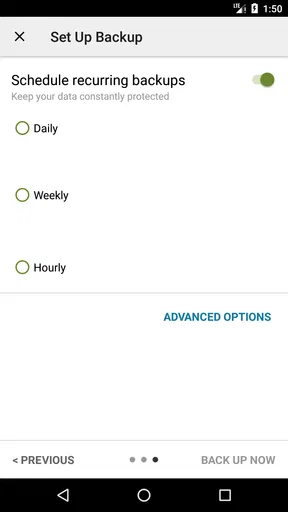
For an everyday routine, I’d choose a regular schedule that fits how often my conversations change, then check occasionally that a recent backup is actually present in the place I chose. A scheduled task is only reassuring when its destination is accessible. If I rely on a cloud account, I’d also make sure I can sign in to that account from another device; if I keep a copy locally, I’d remember that a local file on the same phone is not much help if the phone is lost.
A practical example is preparing to trade in an older phone. I’d make a fresh backup before moving any data, verify that the file is available from the intended storage location, and only then begin setting up the replacement. That order matters: it avoids discovering halfway through the changeover that the only copy was on the device being erased. For a single message I want to keep, I’d still consider saving or exporting it separately if that is more convenient than restoring an entire history later.
Choose a destination with the restore in mind
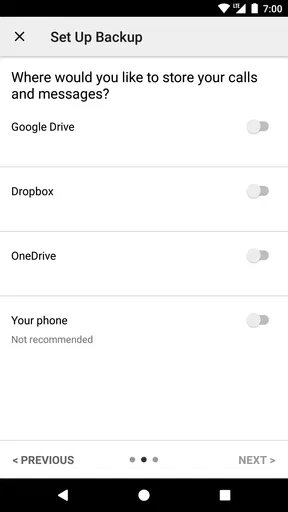
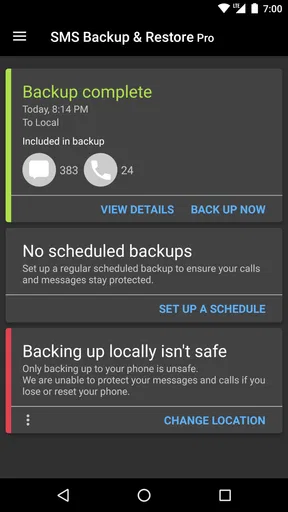
Local storage and a cloud destination solve different problems. A local backup is straightforward and can be useful when I want to keep a copy under my control, but it needs to be moved somewhere safe before the original phone disappears. Cloud storage can make a backup easier to reach during a phone change, though it makes account access and the chosen service part of the recovery plan. I would not treat either choice as automatically safer: the sensible option depends on where I can reliably find the file when I need it.
Before relying on a backup, I’d think through a simple recovery test: if the phone stopped working today, could I access the destination and identify the newest file? That small check is more valuable than creating many copies with unclear names or locations. It also helps answer a common concern: a backup is not the same as a live conversation sync. The app’s role is to create and restore copies, so I’d plan to use those copies deliberately rather than expect every device to show each new message immediately.
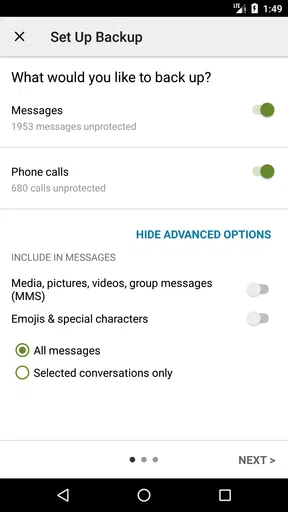
SMS, MMS, and call logs can all matter, but not everyone needs the same scope. Someone who mainly wants to preserve text conversations may prefer to keep the workflow focused; someone who depends on call history for work or caregiving may want to include logs as well. MMS deserves special attention if shared photos or other attachments are important. I’d confirm that the backup I intend to rely on covers the records I care about instead of assuming that a text-only check tells the whole story.
Getting Started with SMS Backup & Restore Pro
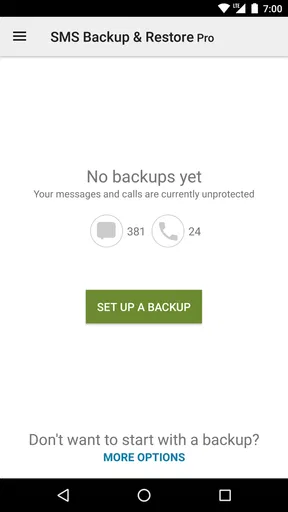
First things first, downloading and setting up the app is a breeze. It’s a tools app from SyncTech Pty Ltd, and it has been available since October 28, 2010. The current version is 10.24.003, and it requires Android 6.0 or later. The age rating is Everyone. After installation, I’d begin by looking at the available backup and restore choices and deciding where I want the resulting files to live, rather than tapping through setup without thinking about recovery.
Backing Up Your Messages
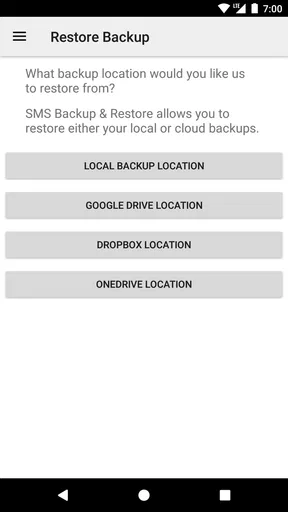
Now, onto the main event: backing up those precious texts. The app lets you back up not just your SMS, but also MMS and call logs, which is super handy. You can choose to store these backups locally on your device or opt for cloud storage options like Google Drive or Dropbox. I appreciated the flexibility here. Personally, I went with Google Drive because I like having access to my backups from anywhere.
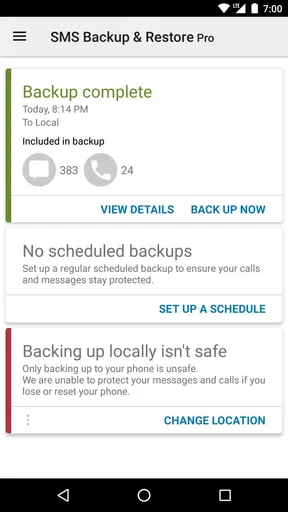
The backup process itself is smooth and doesn’t take long. You can even schedule regular backups, which is a lifesaver for someone as forgetful as I am. The app just quietly does its thing in the background without any fuss.
Settings that deserve a second look
I’d pay particular attention to the schedule and destination after the first run. A schedule is useful only if it matches my habits and does not leave me assuming that a backup exists when I have not checked. If I change cloud accounts, storage choices, or phones, I’d revisit the setup rather than assume the old arrangement still fits. Keeping one clearly identifiable, recent backup is often more useful than accumulating files without knowing which one to restore.
Privacy is another reason to make a deliberate choice. Text histories and call logs can reveal personal routines and relationships, so I’d use an account I control and protect that account with its own security settings. If I’m keeping a copy on a shared or borrowed device, I’d avoid leaving it there. The backup’s usefulness comes with a responsibility to treat the file as sensitive, not as an ordinary document.
Restoring Messages
Restoring your messages is just as easy. Whether you’ve got a new phone or you’re just trying to retrieve something you accidentally wiped, the app guides you through the process. I tested it out by restoring some old texts, and it was seamless. Everything was back where it belonged in no time.
In practice, I’d restore only after checking that I have the right backup and that I’m comfortable with the state of the conversation history it contains. A restore is a recovery action, not merely a way to browse an old archive, so I would not start it casually when I only want to read one past exchange. If the goal is to preserve a record for reference, keeping the backup untouched may be preferable to changing the current phone’s message history.
Phone changes can also involve account setup and other transfer steps, so I’d treat this as one part of moving to a new device rather than assuming it replaces every other migration task. The key question is whether the backup is reachable from the new phone and whether the restore flow is appropriate for the messages I need. Doing a test while the old phone is still available gives me a much better chance to fix a destination or sign-in issue before it becomes urgent.
When a dedicated backup tool makes sense
The usual alternatives are built-in phone migration tools, device or account backups, and manually keeping important information elsewhere. Those can be enough if I only need a broad transfer during a phone upgrade or if my messages are already handled by a system I trust. A focused backup app makes more sense when I specifically want to manage SMS, MMS, and call logs as records I can back up and restore on purpose. It is less compelling for someone who expects automatic cross-device message syncing or wants a searchable archive as the main feature.
This is also a matter of how much control I want. A dedicated workflow makes the backup step visible and repeatable, but it asks me to think about schedules, destinations, and recovery rather than leaving everything to a general phone migration. If I rarely keep messages and already use another dependable way to preserve them, adding another tool may not improve much. If losing a conversation would create real trouble, the extra step can be worthwhile.
User Experience and Design
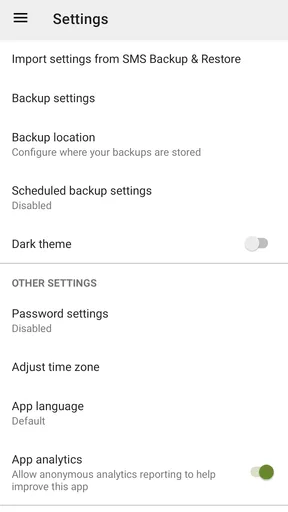
Let’s talk about the user experience. The design is clean and minimalistic, which I find refreshing. There’s nothing worse than an app cluttered with unnecessary features. It sticks to what it knows best, and does it well. The app is responsive, and I didn’t encounter any bugs or crashes during my time with it.
One feature I particularly liked was the ability to view and manage backups within the app. It’s all laid out clearly, so you know exactly what’s happening with your data. Another plus is that the app supports multiple languages, making it accessible to a wider audience.
Faster habits without rushing recovery
Once the setup is settled, the best shortcut is consistency: keep the chosen destination stable, let the schedule do the routine work, and check the latest backup at moments when it matters, such as before resetting or replacing a phone. I would avoid changing several settings at once. If something later looks wrong, making one change at a time makes it easier to spot which choice affected the result.
I’d also separate routine protection from special one-off needs. A recurring backup can cover ordinary conversation changes, while a fresh run before a major phone change gives me a deliberate checkpoint. For especially important information, I would not rely on memory to revisit the app after the fact. I’d make the backup part of the same checklist as checking account access and confirming that the replacement phone is ready.
Security and Privacy
In today’s world, security is a big concern, and rightly so. The app offers encrypted backups as an option. I found this reassuring, especially when dealing with personal information like text messages and call logs.
More broadly, I’d think about who can access the storage account and any device holding a backup. Choosing encryption is only one part of a sensible privacy routine; protecting the account and not leaving copies in places other people use matter too. I would not assume that a backup is private simply because it is stored away from the message app. It contains a concentrated record of conversations, which makes careful handling worthwhile.
Where the trade-offs show
The main limitation is that backups require a little ownership from me. I have to choose a destination, make sure it remains accessible, and understand that restoring a copy is different from keeping messages continuously synchronized. People looking for a completely hands-off transfer or a live archive may be better served by an option already integrated into their phone habits. Anyone who never needs to retain message history may also find the extra setup unnecessary.
There is a practical cost to consider as well: the app is priced at $5.99. With an average rating of 4.2 from around 2.2 thousand ratings and over 100 thousand installs, it has attracted a substantial group of users, but those figures do not decide whether it fits my routine. I’d judge the purchase by how much I value having a separate, repeatable way to protect message and call records. It is a focused tool, not a reason by itself to change how I manage every part of my phone.
Before paying, I’d ask myself what I am trying to protect and how often I would realistically check the backup. If my answer is “important conversations and a phone change now and then,” a dedicated tool may earn its place. If I already have a reliable process that preserves exactly what I need, another app could be redundant. That distinction is more useful than treating a paid backup app as essential for every phone owner.
Final Thoughts
So, is this app worth it? In my opinion, absolutely. It does exactly what it sets out to do without any hassle. The app is easy to use, reliable, and provides peace of mind knowing your messages are safe and sound. If you’re someone who relies heavily on texts and calls, this app is a must-have in your digital toolkit.
Whether you're switching phones or just want to ensure you never lose an important message again, this app has got you covered. Give it a try, and you'll see why it's become a staple for so many users. It’s like having a little safety net for all your conversations, and who doesn’t want that?
My recommendation is strongest for people who want a clear, repeatable way to preserve message history and are willing to check that their backup destination is ready when a phone change or accidental loss happens. I would skip it if I wanted continuous syncing, or if another backup routine already gives me the same records with less effort. Used with a sensible schedule and a destination I can actually reach, it is a practical safety net rather than a substitute for thinking through recovery.
Verdict
Strengths of SMS Backup & Restore Pro
- Easy-to-use interface for all users.
- Supports scheduled automatic backups.
- Backups can be stored locally or in the cloud.
- Restores to new devices effortlessly.
- Supports multiple formats for backups.
Limitations of SMS Backup & Restore Pro
- Does not support MMS attachments.
- Limited cloud storage options available.
- Occasional sync issues with some devices.
- No encryption for local backups.
- Ad-supported unless you buy premium.
Similar Picks in This Category
View All
Google LLC4.0

Gboard - the Google Keyboard
Google LLC4.5

Google Play services
Google LLC4.3

Google Play Store
Google LLC4.9

Files by Google
Google LLC4.5

SHAREit: Transfer, Share Files
Smart Media4U Technology Pte.Ltd.4.3
Frequently Asked Questions
What is SMS Backup & Restore Pro, and how does it work?
SMS Backup & Restore Pro is an app designed to back up and restore your text messages and call logs on Android devices. It creates local backups on your phone or cloud storage services like Google Drive and Dropbox. You can easily restore your data to any Android device, ensuring your messages and logs are safe even if you switch phones.
Is SMS Backup & Restore Pro compatible with all Android devices?
Yes, SMS Backup & Restore Pro is compatible with most Android devices running Android 4.0 and above. It works well with both smartphones and tablets, making it versatile for a wide range of users. However, some features may vary depending on the device model and Android version.
Does SMS Backup & Restore Pro support cloud storage?
Absolutely! SMS Backup & Restore Pro supports various cloud storage options, including Google Drive, Dropbox, and OneDrive. This feature allows users to store their backups securely in the cloud, providing easy access and additional protection against data loss. You can schedule automatic backups to cloud services for added convenience.
Is my data secure with SMS Backup & Restore Pro?
Yes, SMS Backup & Restore Pro prioritizes data security. The app offers encryption options for your backups, ensuring that your messages and call logs are protected from unauthorized access. Users can set a password for their backups, adding an extra layer of security to their personal data.
Are there any limitations to using SMS Backup & Restore Pro?
While SMS Backup & Restore Pro offers extensive features, it has some limitations. For example, it may not back up MMS messages with attachments fully. Additionally, restoring messages to specific messaging apps may require additional steps. Users should review these limitations to ensure the app meets their specific needs.
